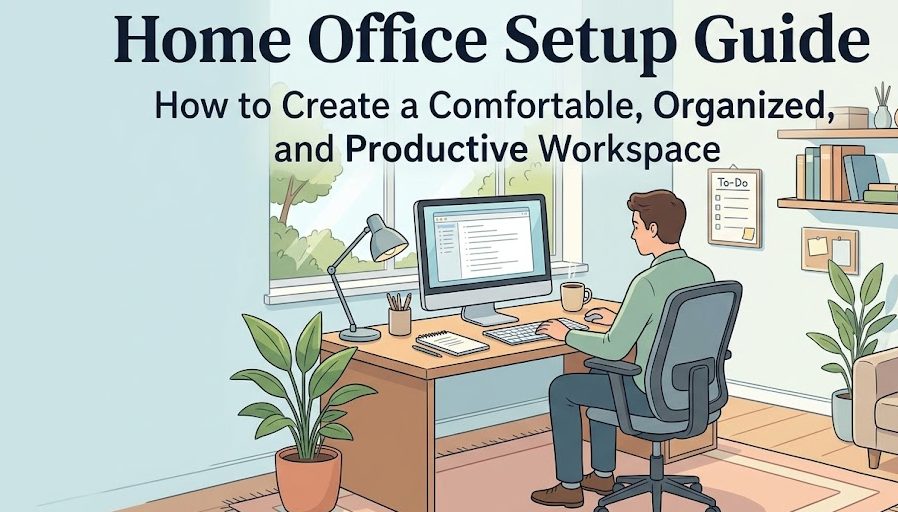
Build a Home Office That Feels Good to Work In.
A practical guide to creating a comfortable, organized, and productive workspace at home — from choosing the right location and desk to managing lighting, technology, storage, comfort, and everyday routines.
Choose the Right Location Before Buying Anything
The location of a home office has a major effect on how comfortable and practical it becomes. Before purchasing a desk, chair, monitor, or storage furniture, look at the available space and think about how it will be used throughout the day.
A dedicated room is useful, but it is not essential. A quiet corner of a bedroom, living area, spare room, or another suitable part of the home can become a functional workspace. The important factors are available light, noise, movement around the area, electrical access, ventilation, and enough room to work without constantly moving equipment.
Noise
Choose an area where conversations, television, traffic, or household activity are less likely to interrupt focused work.
Light
Natural light can make the space feel more pleasant, but direct glare should be controlled.
Access
Make sure power outlets, internet access, and frequently used equipment can be reached conveniently.
Think About Movement Before Filling the Room
A home office can quickly become crowded when every available surface is used for storage. A better approach is to decide where the major elements will go first and then add smaller accessories only when they have a clear purpose.
Place the Desk
Start with the main work surface and make sure there is enough space to sit comfortably and move around it.
Position the Chair
Leave enough room behind and beside the chair so standing up does not feel restricted.
Add Storage
Place frequently used items close to the desk while keeping rarely used supplies farther away.
Manage Cables
Plan where chargers, power strips, displays, and other cables will run before permanently arranging the equipment.
Choose a Desk That Matches Your Work
The desk is the center of the home office, so its size should be based on actual working habits. Someone who uses a laptop may need much less space than someone working with two monitors, notebooks, documents, drawing equipment, or other devices.
Useful for laptops, writing, browsing, and lighter daily work where space is limited.
01A balanced option for a computer, accessories, notebooks, and regular office tasks.
02Better suited to multiple displays, documents, creative equipment, or several active devices.
03Create a Setup That Supports Long Work Sessions
Comfort should be considered before decoration. A beautiful office can still be difficult to use if the chair, desk, monitor, keyboard, or lighting is poorly positioned.
The goal is not to create a perfect-looking desk. The goal is to create a workspace where your body and attention are supported during everyday work.
Use Light to Make the Workspace Easier on the Eyes
Lighting can dramatically change the atmosphere of a home office. A room that is too dark can feel tiring, while harsh or poorly positioned light can create glare on displays.
Natural light is useful when available, but the desk should not be positioned in a way that causes strong reflections on the monitor. Curtains, blinds, or adjustable shades can help control changing daylight.
Build a Reliable Digital Workspace
Technology should make work easier rather than create another source of clutter. Start with the devices you actually need and organize them around your main workflow.
Computer
Choose a computer capable of handling your normal workload without unnecessary hardware that adds cost or complexity.
Display
A larger or additional display can be useful when comparing documents, managing multiple applications, or working with detailed content.
Internet
A reliable connection is important for video calls, cloud applications, file transfers, research, and remote collaboration.
Backup
Important documents should have a sensible backup system so a device problem does not become a major data loss event.
Give Every Important Item a Place
Organization is easier when objects have designated locations. Instead of repeatedly moving chargers, notebooks, documents, cables, and accessories around the desk, decide where each category belongs.
Make the Desk Look Cleaner by Managing the Invisible Clutter
Cables are one of the fastest ways for a home office to become visually messy. Chargers, monitor cables, USB connections, power cords, and networking equipment can easily become tangled.
Start by identifying which cables are permanently connected and which are used occasionally. Group related cables, label important connections, and keep excess cable length controlled. Power strips should be positioned safely rather than hidden in a place where they cannot be accessed.
Simple Rule
If you cannot quickly identify what a cable belongs to, organize or label it. A few minutes of cable organization can save much more time when equipment needs to be moved or replaced.
Design the Workspace Around Your Most Important Work
A productive office should make important tasks easy to start. Keep the tools used most frequently within reach and reduce unnecessary visual distractions around the primary work area.
The physical environment and daily routine should support each other. A clean desk cannot automatically create productivity, but a thoughtfully designed workspace can remove many small distractions that make focused work harder.
Use Vertical and Hidden Space Wisely
When floor space is limited, storage should not automatically mean adding another large piece of furniture. Shelves, drawers, wall-mounted organizers, file holders, and compact storage boxes can help keep important supplies organized.
A useful system separates items according to frequency of use. Things needed every day should remain easy to reach. Items needed occasionally can be stored farther away, while old paperwork and rarely used equipment should not occupy the main working surface.
Think in Zones
Create a work zone, storage zone, charging zone, and document zone. Separating these areas reduces visual clutter and makes it easier to return items to their proper location.
Do Not Design the Workspace for Only One Situation
Work requirements can change. A person may normally use a laptop but occasionally need a second monitor. Someone may write documents one day and attend video meetings the next.
A flexible office makes these transitions easier. Use movable accessories, adjustable furniture where appropriate, and storage that can be reorganized without rebuilding the entire room.
Flexible Setup
Keep frequently moved equipment easy to disconnect and reposition. Avoid permanent arrangements that make simple changes unnecessarily difficult.
Less Is Often Better
Every object does not need to stay on the desk. Keep the primary surface clear enough to support the actual work being performed.
Small Setup Problems That Can Make Work Harder
Too Much Desk Clutter
Keeping every accessory on the work surface reduces usable space and makes cleaning harder.
Poor Lighting
Strong glare, dark surroundings, or badly positioned lamps can make the workspace uncomfortable.
Ignoring Cables
Unmanaged cables can create visual clutter and make equipment changes unnecessarily difficult.
Buying Too Early
Purchasing furniture and accessories before planning the space can lead to wasted money and poor layouts.
No Storage System
Without designated places for documents and accessories, clutter gradually returns to the desk.
Ignoring Daily Habits
A good setup can still become messy if there is no simple routine for resetting the workspace.
You Do Not Need to Buy Everything at Once
A home office can be improved gradually. Start with the things that directly affect your daily work and comfort, then add secondary improvements later.
End Each Workday by Preparing the Space
A short reset at the end of the workday can make the next morning easier. Return frequently used items to their normal positions, remove unnecessary papers, organize cables that have moved, clear cups or food containers, and check whether anything needs attention before the next work session.
The reset does not need to take long. The purpose is simply to prevent small amounts of disorder from becoming a larger organizational problem.
Clear the Main Surface
Remove items that are not needed for tomorrow’s work.
Return Items
Put chargers, notebooks, documents, and accessories back into their assigned places.
Prepare Tomorrow
Leave the tools needed for the next important task easy to access.
Final Thoughts
A comfortable and productive home office is created through thoughtful decisions rather than expensive equipment alone. The most useful workspace is one that fits the available room, supports comfortable working positions, provides adequate lighting, keeps technology organized, and makes important tasks easy to begin.
Start with the essentials. Choose the right location, establish a practical desk layout, organize cables and storage, improve lighting, and create a simple daily reset routine. Once those foundations are working well, additional equipment and decorative improvements can be added according to your needs.