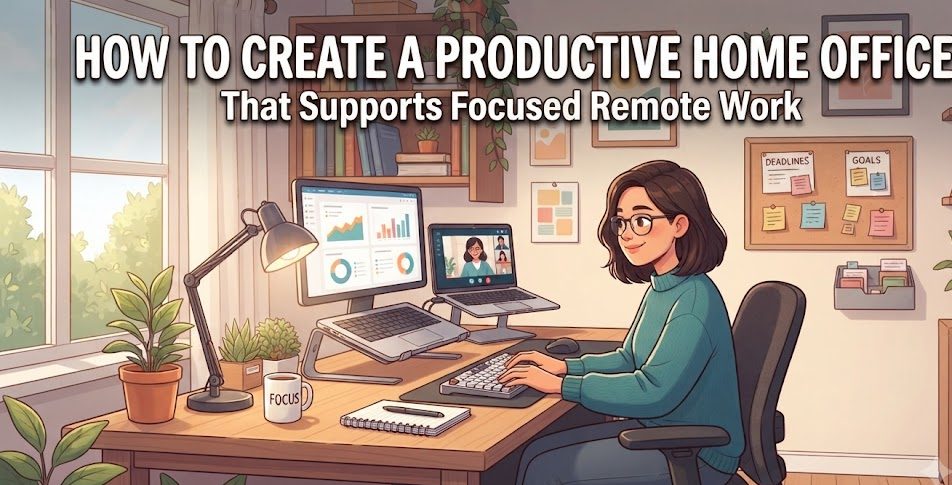
Working from home can offer flexibility, but a comfortable house does not automatically make a productive workplace. Without a dedicated setup, work can easily blend into personal time, distractions can become frequent, and even simple tasks may take longer than expected. A thoughtfully designed home office can create a clearer boundary between professional responsibilities and everyday life while making regular remote work more organized and comfortable.
Creating a productive home office does not necessarily require an expensive desk, premium equipment, or a large room. The most useful workspace is one that matches the type of work being performed and makes important tasks easy to complete. Good lighting, suitable furniture, reliable technology, sensible organization, and a consistent routine can often make a greater difference than decorative upgrades.
Whether you work remotely every day or occasionally need a quiet place for focused tasks, a few practical improvements can turn an unused corner into an efficient workspace.
Design your workspace around the work you actually do. A person who spends most of the day on video meetings may need different equipment from someone who primarily writes, designs, analyzes data, or works with physical documents.
Choose a Dedicated Work Area
The first step is deciding where work will happen. A separate room is ideal, but it is not essential. A quiet corner of a bedroom, living room, guest room, or other suitable area can work if it provides enough space for the necessary equipment.
Using the same location consistently can help establish a mental connection between that space and work. When you sit there, your routine naturally becomes associated with concentration and professional tasks.
If possible, choose an area away from television noise, heavy household traffic, and other frequent interruptions. Even a small reduction in distractions can make demanding work easier.
Location
Select an area that can consistently be used for work.
Quiet
Reduce unnecessary noise and interruptions.
Lighting
Create enough comfortable light for screens and documents.
Order
Keep frequently used items within easy reach.
Invest in a Suitable Desk
The desk is the foundation of a home office. It should provide enough surface area for the computer, monitor, keyboard, mouse, notebook, and other items you regularly use without making the workspace feel crowded.
A desk that is too small can force equipment into uncomfortable positions, while an unnecessarily large desk may consume valuable room space. Measure the available area before purchasing furniture and consider how much workspace you genuinely need.
Cable openings or simple cable-management solutions can also help keep the surface clean. A tidy desk makes it easier to locate important items and reduces visual clutter.
Before buying a desk, consider:
Choose a Comfortable Chair
A chair is one of the most important parts of a workspace because remote workers may spend several hours sitting during the day. The goal is not necessarily to find the most expensive office chair, but to choose one that allows a comfortable and supported sitting position.
A chair with adjustable features can make it easier to match the seating position to your desk. Consider seat height, back support, arm position, and whether your feet can rest comfortably while working.
If your current chair causes discomfort during normal work sessions, improving the chair should generally receive higher priority than decorative office accessories.
Comfort matters over appearance
A stylish chair is not automatically a suitable work chair. Focus on adjustability, support, and comfort rather than choosing furniture based only on how it looks.
Set Up the Screen at a Comfortable Position
Monitor and laptop placement can influence how comfortably you work. A screen positioned too low may encourage you to bend your neck downward, while a poorly positioned display can make long periods of computer use less comfortable.
If you primarily use a laptop, consider whether a separate keyboard and mouse would allow you to position the screen more comfortably. A dedicated monitor can also be useful when your work involves multiple applications or large documents.
The exact setup depends on the individual, but the general goal is to create a relaxed viewing position without forcing your body into an awkward posture.
Use Lighting Wisely
Good lighting can make a workspace more pleasant and reduce the need to constantly adjust to a dark or overly bright environment. Natural daylight can be useful, but direct sunlight on the screen may create reflections and make text difficult to see.
Position your desk so that windows provide useful illumination without creating excessive glare. During darker hours, use a suitable desk or room light that provides comfortable illumination around the workspace.
Simple lighting adjustments
- Avoid strong light directly behind or in front of the screen when it causes glare.
- Use additional lighting for paper documents when necessary.
- Adjust screen brightness to suit the surrounding environment.
- Keep the workspace evenly illuminated where practical.
Build a Reliable Technology Setup
A productive home office depends heavily on reliable technology. Your computer should be capable of handling the applications required for your job without constant freezing or performance problems.
Think about your daily workflow before purchasing upgrades. Someone working with documents may have very different requirements from a video editor, software developer, designer, or data professional.
Instead of upgrading everything at once, identify the component that is actually limiting your workflow. Sometimes additional storage, more memory, a better monitor, or a more reliable network connection can provide more practical value than replacing the entire computer.
Suitable for your workload
Comfortable screen setup
Keyboard and mouse that suit you
Stable internet connection
Make Internet Reliability a Priority
Remote work often depends on cloud applications, online meetings, messaging platforms, file synchronization, and web-based tools. An unreliable connection can therefore interrupt work even when the computer itself is functioning perfectly.
Position the router appropriately and test your Wi-Fi signal in the workspace. If wireless connectivity is inconsistent, a wired Ethernet connection may be worth considering for stationary equipment where practical.
It is also useful to understand how many devices share the network. Streaming, gaming, cloud backups, and large downloads can consume bandwidth while you are trying to attend an important meeting.
Control Cable Clutter
A collection of loose charging cables, monitor cables, adapters, and power cords can quickly make a home office look disorganized. Cable management does not need to be complicated.
Group related cables together, label important connections when necessary, and keep power cords arranged so they do not create unnecessary obstacles. Cable clips, sleeves, trays, and simple ties can help maintain order.
A cleaner cable setup
🔸 Separate power cables from frequently handled desk cables.
🔸 Label cables that are difficult to identify.
🔸 Keep unnecessary cables off the main desk surface.
🔸 Leave enough slack for safe movement and adjustments.
Create a Distraction-Free Environment
Productivity is influenced by the environment around you. Notifications, television, social media, household conversations, and unnecessary browser tabs can repeatedly interrupt concentration.
Start by identifying the distractions that affect you most. You do not need to eliminate every sound or activity around you. The objective is to reduce interruptions that repeatedly break your concentration.
During focused work sessions, silence nonessential notifications and keep unrelated applications closed or minimized.
Reduce digital distractions
Keep Essential Items Within Reach
A good workspace should make common tasks easy. Keep frequently used items such as notebooks, pens, headphones, chargers, and documents in predictable locations.
Items that are rarely used can be stored elsewhere. This prevents the main work surface from becoming a storage area for everything you own.
A simple organization system is usually more sustainable than an elaborate one. If returning an item to its place takes only a few seconds, you are more likely to maintain the system.
Use a Second Monitor Only When It Helps
Multiple monitors can be valuable for tasks involving several applications, references, communication tools, or large documents. However, more screens are not automatically better.
Too many displays can increase visual distractions and encourage constant switching between tasks. Consider whether an additional monitor genuinely improves your workflow before purchasing one.
A second screen can help with:
- Comparing documents side by side.
- Keeping reference material visible while working.
- Monitoring communication tools during specific tasks.
- Working with development, design, or data applications.
Organize Your Digital Workspace Too
A clean physical desk is helpful, but digital clutter can be just as distracting. An overloaded desktop, hundreds of browser tabs, poorly organized files, and excessive notifications can slow down daily workflows.
Create clear folders for active projects and archive completed work. Use descriptive file names so documents can be located without opening multiple files.
Keep your most frequently used applications and resources easy to access while removing shortcuts and files that are no longer useful.
Protect Your Work With Backups
Remote work often involves important documents, project files, photographs, spreadsheets, presentations, and other valuable information. Losing those files because of accidental deletion, device failure, or another unexpected event can create significant disruption.
Use a backup approach appropriate for the type and importance of your files. Cloud synchronization can be convenient, but synchronization is not always the same as having an independent backup. For particularly important information, consider maintaining another suitable copy.
Protect important work
Identify which files would be difficult or impossible to recreate. Prioritize those files when designing your backup routine and periodically confirm that your backup process is actually working.
Create a Clear Start-and-Stop Routine
One of the biggest challenges of remote work is knowing when the workday begins and ends. Without a physical commute, it can be tempting to check messages immediately after waking up or continue working late into the evening.
A consistent start routine can include reviewing priorities, checking the day’s schedule, and preparing the workspace. At the end of the workday, close active tasks, organize important files, and shut down or leave the workspace in a clear state.
A simple remote-work rhythm
Review priorities
Complete important tasks
Step away periodically
Close and organize
Schedule Focused Work Sessions
A long list of tasks can make the workday feel overwhelming. Breaking the day into focused sessions can make priorities easier to manage.
Choose one important task and give it a defined period of uninterrupted attention. After completing the session, take a short break or switch to a less demanding activity.
The exact timing does not need to follow a rigid productivity system. The important part is creating periods where your attention is directed toward a specific objective instead of constantly switching between unrelated tasks.
Prepare for Video Meetings
Remote meetings can be much easier when the workspace is prepared in advance. Test the microphone, camera, speakers, and internet connection before important calls rather than waiting until the meeting begins.
Keep the camera area reasonably tidy and make sure your face is adequately illuminated if video is required. Headphones can also be useful when background noise or audio feedback becomes a problem.
Test your microphone → check the camera → confirm the correct audio device → close unnecessary applications → verify your connection.
Keep the Workspace Comfortable Throughout the Day
Temperature, airflow, noise, and general room comfort can influence how easy it is to stay focused. A workspace that is consistently too hot, cold, dark, or noisy may become distracting even when the technology is excellent.
Adjust the room according to the conditions and your preferences. If possible, maintain reasonable airflow and avoid placing equipment where it blocks ventilation or becomes unnecessarily exposed to heat.
Add Small Features That Improve Convenience
Once the fundamentals are handled, small additions can make a home office more enjoyable. A headphone stand, desk organizer, charging station, notebook holder, or adjustable lamp may reduce small sources of daily friction.
However, convenience accessories should come after the basics. There is little value in purchasing decorative equipment while the desk is uncomfortable, the internet is unreliable, or important files are not backed up.
Prioritize improvements in this order
Avoid Turning the Home Office Into a Storage Area
One common mistake is allowing the workspace to become a collection point for household items. Boxes, unused electronics, paperwork, shopping bags, and miscellaneous objects can gradually take over the desk.
Keep only work-related items in the immediate workspace when possible. A quick end-of-day reset can prevent clutter from accumulating.
Protect Your Accounts and Devices
A productive office should also be a secure one. Use strong, unique passwords and enable appropriate account-security features. Keep the operating system, browser, and important applications updated through trusted sources.
Be careful with unexpected emails, suspicious downloads, unknown links, and requests for sensitive information. Remote workers often handle company or customer information, making basic digital security especially important.
Basic home-office security
🔐 Use strong account passwords.
🛡️ Keep important software updated.
📁 Back up valuable work.
⚠️ Be cautious with unexpected messages and downloads.
Make the Setup Match Your Work Style
There is no single home-office design that works for everyone. A writer may value a quiet desk and comfortable keyboard, while a designer may need a larger monitor. Someone who attends meetings throughout the day may prioritize a good microphone and camera, while a developer may need multiple displays and reliable networking.
Think about the tasks you perform most often and identify the points where your current setup slows you down. Improve those areas first.
Build Around Your Daily Tasks
Prioritize keyboard comfort and a clean screen.
Prioritize camera, microphone, lighting, and connection.
Prioritize display quality and workspace area.
Prioritize computing performance and useful screen space.
Review the Workspace Every Few Months
Your work requirements can change over time. A setup that worked when you had a small number of tasks may become inconvenient as projects, meetings, equipment, or responsibilities increase.
Every few months, look at the workspace with fresh eyes. Ask what causes the most interruptions, what equipment is rarely used, which files are difficult to locate, and what part of the setup feels uncomfortable.
Small adjustments made regularly can be more practical than completely redesigning the office whenever productivity becomes difficult.
A Practical Home Office Checklist
A Productive Home Office Is Built Around Your Workflow
A successful home office is not about creating a picture-perfect room. It is about designing an environment that makes important work easier to start, easier to complete, and easier to manage. A suitable desk and chair, dependable technology, comfortable lighting, organized equipment, and a stable internet connection form the foundation.
From there, reducing distractions and establishing a consistent work routine can help create a stronger separation between professional and personal activities. Digital organization and reliable backups also protect the work you produce.
The best setup will look different for every remote worker. Instead of copying someone else’s expensive office design, identify the tasks that occupy most of your day and improve the areas that create the greatest friction.
Even a small corner can become an effective remote workspace when it is planned thoughtfully. Start with comfort, reliability, organization, and focus, then add optional improvements as your needs evolve. A practical workspace does not need to be complicated—it simply needs to support the way you work.